
Clinic
Telehealth
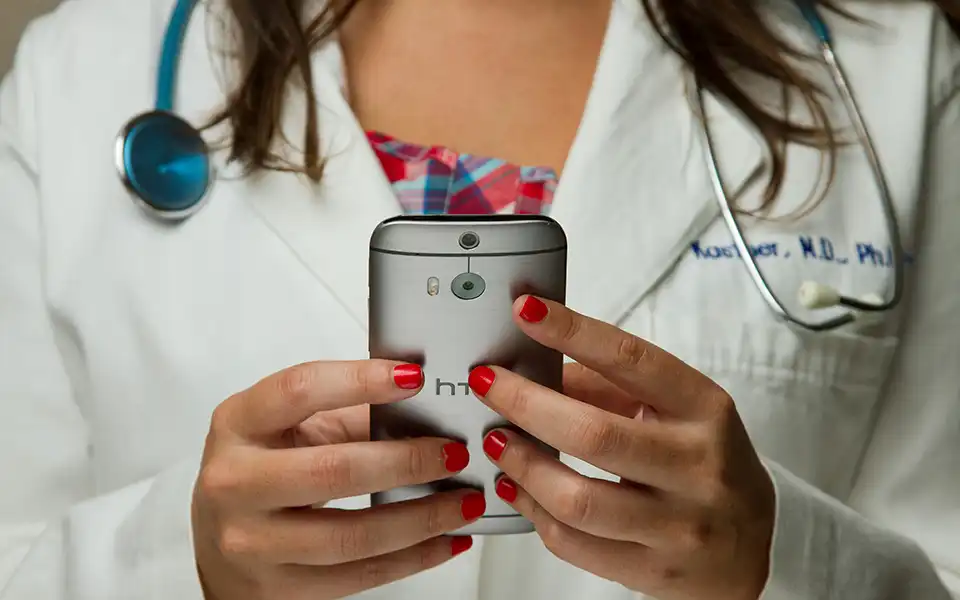
Secure video visits
We offer secure video visits through Doxy.me.
It’s understandable that coming into the office is not always convenient. Online appointments allow you to receive the same quality care as you do in person. No need to take time off work, find a sitter, or deal with traffic in order to meet with your provider.
Online appointments are appropriate for many types of appointments and can enable you to start treatment sooner. Feel free to contact our scheduling team for more information or to schedule your appointment.
Checking in as a Patient using the Chrome browser
Checking in as a Patient using the Firefox browser
FAQs
Once we receive notification you are in the virtual waiting room, your provider or their medical assistant will login and start the Telehealth Visit to make sure the audio and video are working and capture any pertinent information related to your scheduled visit. Your provider will then start the Telehealth visit.
We recommend checking in about 15 minutes prior to your scheduled appointment.
If you are self-pay patient, our scheduling team will collect the pertinent fee before confirming your appointment. Please have a credit or debit card available. If for any reason your account indicates a past balance, this must also be paid as well.
Yes, we will be able to refill your medications after your Telehealth visit.
All data is encrypted, patient sessions are anonymous, and no patient info is stored persistently. Doxy.me utilizes the AES cipher with 128-bit keys to encrypt audio/video, and HMAC-SHA1 to verify data integrity.
No, you don't need to create an account. You simply go to your providers url that will be sent to you via text and click the link. You will check in and the medical assistant and your provider will start the call when they are ready.
No, you will access your Telehealth Visit using a browser on a computer, cell phone or device with a camera and microphone.
You must have:
- Mac/PC/Linux/Chromebook with camera, microphone, and speakers
- Internet connection with at least 2MBPS download and upload speeds (Due to so many people currently on the internet)
- Check your network speed
- Google Chrome, Mozilla Firefox, or Safari 11+ (latest release versions)
- You'll need to have the latest operating systems such as Windows 10 or MacOS Catalina to obtain the latest versions of the browsers listed above
- JavaScript must be enabled (this is enabled by default, and we'll give you a message in Doxy.me that you need to enable it)
- Make sure TCP ports 80 and 443 are open (sometimes firewalls will block these ports, ask your IT team if you can't connect with someone if this is causing it)
Yes, you can download the "How to check in for your video visit (PDF)" document.
Please see our Troubleshooting section for more information.
Troubleshooting
We highly recommend restarting your device before your Telehealth Visit.
If you have previously used other programs (e.g. Skype, Zoom, etc.) that utilize your camera and/or microphone, they may still be running in the background without you realizing it and this could potentially prevent Doxy.me from accessing them.
Restarting your device is the best way to ensure these programs are shut down and there are no issues with audio and video.
If for any reason you encounter issues, please contact our office at (949) 305-7122 and press option XX and ask to be connected to the medical assistant for the provider you have your scheduled Telehealth Visit with and they will be able to further assist you.
- Where can I download a compatible browser?
- You can download Chrome or download Firefox and use either of those.
- How do I know if my network is fast enough?
- Use a free online network speed tester.
- How can I improve video quality?
- Restart your computer before your first call
- Be close to your wifi router
- Make sure no other parties on the network are using up the bandwidth
- Close any browser windows you don’t actively need for the call
- Close high-intensity programs running on your computer
- How do I get rid of an echo?
- Use headphones
- Reduce your speaker volume
- Move the microphone away from the speakers